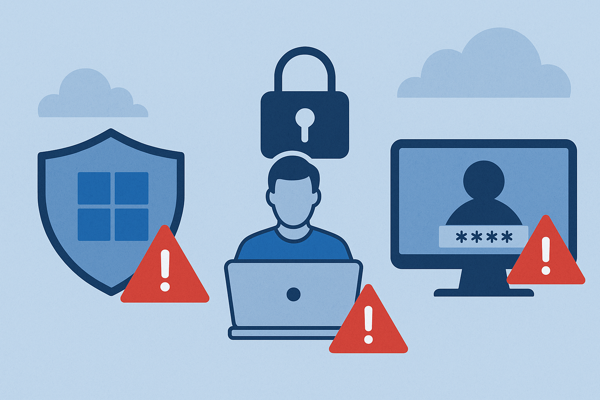
The DLP dashboard is green.
Repository push protection is enabled. The approved file-sharing platform blocks public links. Managed laptops prevent copying sensitive files to removable media. The security team can point to policies, controls, alerts, and training.
Then someone finds a current API key in a public repository.
Or a configuration file in a support forum. A source-code fragment in a paste. An internal hostname in a public issue. A customer data sample in a forgotten cloud share. A credential in a contractor’s fork.
The organization did not see the information leave.
That does not make the exposure less real.
This is the gap between data-loss prevention and external-exposure response. Prevention controls watch selected systems, users, repositories, interfaces, and transfer paths. They are necessary. They are not proof that sensitive information never crossed a path the organization could not see.
The practical lesson is simple:
A data-protection program is incomplete until it can find, neutralize, and learn from sensitive information that is already outside the managed boundary.

Prevention Sees the Paths It Controls
Organizations should prevent sensitive data from leaving in the first place.
That includes classifying information, limiting access, using secrets managers, scanning source code, blocking known secret patterns, controlling file sharing, monitoring managed endpoints, and reducing the lifetime and authority of credentials.
The joint CISA and FBI guidance on Product Security Bad Practices identifies hardcoded credentials and secrets in source code as a dangerous practice for products used in critical infrastructure and recommends secrets managers and scanning within the development process.
GitHub provides another useful example. Its secret-security guidance distinguishes push protection, which attempts to stop supported secrets before they enter a repository, from secret scanning and public monitoring, which identify exposures that already exist. GitHub describes public monitoring as visibility into credentials exposed beyond repositories owned by the enterprise.
That distinction matters.
Preventive and detective controls are not interchangeable. One attempts to stop the event. The other assumes prevention can fail and looks for evidence afterward.
Even strong platform controls have scope. GitHub’s own secret-scanning documentation describes supported patterns, pair-matching conditions, legacy-token limitations, large-push conditions, and other cases in which push protection may not detect or block a secret.
That is not an argument against push protection.
It is an argument against treating any point control as proof of absence.
Public repositories are only one possible destination. Sensitive material can also appear in support portals, issue trackers, package artifacts, code forks, shared folders, archived pages, discussion sites, and third-party systems. Some of those channels belong to the organization. Others do not. Some produce useful logs. Others may provide only a timestamp, a URL, and a copy of what was exposed.
The control model must account for both conditions:
- Prevent what can be prevented inside managed workflows.
- Monitor and respond where prevention cannot provide complete visibility.
Treat External Exposure as Incident Evidence
Finding sensitive material outside the organization is not merely a content-cleanup task.
It may be evidence of an incident.
An exposed credential may still authorize access. A configuration may reveal trust relationships, administrative interfaces, naming conventions, or control gaps. Source code may disclose intellectual property, security assumptions, embedded secrets, or exploitable implementation details. A customer record may trigger privacy, contractual, legal, or regulatory obligations. A seemingly harmless internal identifier may help an attacker improve targeting.
The correct response depends on what the artifact can do, what it reveals, how current it is, and who may have obtained it.
This is why deletion alone is not containment.
Removing a repository, post, attachment, or cached page can reduce continuing exposure. It does not invalidate a credential, erase copies, reverse indexing, identify prior access, or prove that the information was never used.
For secrets, the priority is authority.
The OWASP Secrets Management Cheat Sheet recommends that secrets be revocable, rotated, limited in lifetime and privilege, and supported by lifecycle records that help responders understand who had access and when the secret was used or changed. Stopping the application or deleting the exposed file does not necessarily revoke the credential behind it.
For other data classes, the priority may be different. The organization may need to preserve evidence, restrict further access, notify an owner, assess contractual scope, request removal, investigate misuse, or determine whether the material exists in additional locations.
The external artifact is the beginning of the response question, not the end.
Build the External Exposure Response Loop
A practical external-exposure capability has five stages: discover, classify, neutralize, trace, and learn.
1. Discover: What is visible outside the boundary?
Define the sensitive artifacts the organization cares enough to recognize.
The list may include:
- Credentials, tokens, private keys, and connection strings.
- Source code and proprietary algorithms.
- Device, cloud, application, and network configurations.
- Internal domains, hostnames, project names, and administrative paths.
- Customer, employee, regulated, or contractually protected data.
- Documents carrying distinctive identifiers, watermarks, or structured patterns.
Then define the monitoring scope, frequency, owners, escalation path, and evidence-handling requirements for each class.
No discovery method sees the entire internet. A useful program therefore states its coverage and blind spots explicitly. It distinguishes continuous monitoring from periodic searches, platform-native scanning from broader exposure monitoring, and confirmed findings from possible matches that still require analyst validation.
The goal is not to claim universal visibility.
The goal is to reduce the period during which a consequential exposure remains unknown.
2. Classify: What can the artifact enable?
Do not prioritize solely by how embarrassing the artifact looks.
Classify it by authority, sensitivity, current validity, exploitability, reach, and affected business process.
Ask:
- Is this an active secret, an expired secret, or a string that only resembles one?
- What systems, data, funds, or actions could it authorize?
- Is the artifact complete enough to use, or does it become dangerous when combined with other information?
- Is the exposed copy current, historical, partial, or modified?
- Does it contain regulated data, customer information, trade secrets, or security architecture details?
- Is it publicly accessible, indexed, cached, mirrored, or limited to a narrower audience?
- Who owns the asset and who has authority to contain it?
The fastest path to a good decision is a prepared owner map. Security should not discover during the incident that nobody knows who can rotate the key, suspend the integration, contact the platform, interpret the contract, or decide whether operations can tolerate emergency change.
3. Neutralize: Remove authority before chasing every copy
If an exposed artifact grants access, invalidate that authority first.
Revoke the token. Rotate the key. Terminate sessions. Disable the account. Restrict the affected interface. Replace the certificate. Narrow the permission. Add temporary monitoring or access controls while the permanent change is implemented.
Then address continuing availability of the artifact through the appropriate channel: delete an owned copy, request removal, use an established takedown process, restrict a share, or work with the platform or third party that hosts it.
Containment order matters.
If responders spend hours removing a public page while the exposed credential remains valid, they are reducing visibility without reducing authority. A downloaded copy can still work.
The neutralization plan must also account for dependencies. Rotating one secret may break applications, vendors, automated jobs, recovery processes, or downstream services. That is a reason to engineer revocation and replacement paths before an incident, not a reason to keep exposed authority alive.
4. Trace: How did it get there, and what happened next?
Once the immediate risk is controlled, reconstruct the path.
Determine:
- Where the artifact originated.
- Which person, system, process, or third party handled it.
- When it became exposed and when the organization discovered it.
- Whether logs show access, authentication, downloading, reuse, or related activity.
- Whether the same material exists in forks, mirrors, archives, tickets, backups, chat systems, or build artifacts.
- Whether similar artifacts were created by the same workflow.
- Whether an attacker could combine the finding with other public information.
NIST SP 800-61 Rev. 3 frames incident response as part of cybersecurity risk management rather than a stand-alone activity and connects preparation, detection, response, and recovery. External-exposure work should follow the same logic. The team needs enough evidence to reduce immediate impact and improve the system that allowed the exposure.
Tracing must remain proportionate. Not every public identifier justifies a full forensic investigation. Not every old credential remains usable. The classification stage should drive the depth of response.
5. Learn: Which control or assumption failed?
The last stage converts a one-time cleanup into program improvement.
An exposure may reveal:
- A secret embedded in code because the approved retrieval method was too difficult.
- A repository that did not inherit the organization’s security configuration.
- A contractor or vendor using an unmanaged development workflow.
- Sensitive troubleshooting data copied into a support channel.
- A DLP policy that covered endpoints but not build logs or cloud collaboration.
- A credential with excessive privilege or no practical rotation process.
- A data classification rule that employees could not apply to real work.
- An alert that reached a mailbox nobody owned.
Fix the common cause, not only the visible artifact.
The question is not simply, “Did we remove it?”
The better question is, “What changed so that the same process is less likely to expose the next artifact?”
Prioritize Authority, Exposure, and Business Consequence
External findings need a decision model.
A useful triage approach considers three dimensions.
Authority
What can the artifact authorize or enable?
An active administrative credential, signing key, production token, or remote-access configuration may require immediate containment. A disabled test credential may require documentation and process correction without the same urgency.
Exposure
Who could obtain it, and for how long?
Public, indexed, and mirrored content has a different exposure profile from a restricted ticket available to a small support team. However, restricted does not mean safe. Third-party access, retention, forwarding, and account compromise still matter.
Business consequence
What could happen if the information is used or disclosed?
Consider system control, customer harm, financial movement, service disruption, regulatory scope, intellectual property, safety, contractual commitments, and reputational impact.
These dimensions prevent two common mistakes.
The first is treating every match as a crisis.
The second is treating a small-looking artifact as harmless when it carries substantial authority.
Measure the Response, Not Just the Number of Hits
Raw alert volume is a weak success measure.
More useful measures include:
- Time from external publication to discovery.
- Time from discovery to owner acknowledgement.
- Time to invalidate active authority.
- Time to determine the affected systems and data.
- Percentage of high-impact secrets with a tested emergency rotation path.
- Percentage of material findings with preserved evidence and documented disposition.
- Recurrence rate by workflow, business unit, vendor, repository, or artifact type.
- Percentage of monitoring patterns with a named owner and review date.
- Number of findings that produced a control, process, or architecture improvement.
- Percentage of high-risk exposures for which misuse could be assessed from available logs.
One metric deserves special attention:
How long does it take to make a discovered artifact harmless?
Discovery creates the opportunity to respond.
Neutralization changes the risk.
Where ClawBack Fits
MicroSolved currently positions ClawBack™ as a data-leak detection capability supporting exposure monitoring, advisory retainers, and vCISO relationships, with evidence that can support response conversations.
That is the right place for external-exposure monitoring in the operating model.
Its job is not to replace DLP, repository controls, secrets management, identity governance, incident response, or legal and privacy review. It helps close the visibility gap between what internal controls observed and what may be visible outside the organization.
The value of a finding depends on the process around it:
- What classes of information are in scope?
- Which sources and channels are monitored?
- How are possible matches validated?
- Who owns each artifact class?
- What evidence is preserved?
- What requires immediate escalation?
- How will credentials be revoked, files removed, and downstream impact assessed?
- How will lessons feed back into prevention?
ClawBack should therefore be treated as part of an exposure-response capability, not as an isolated alert feed.
What Security Leaders Should Do This Week
Choose one artifact class with meaningful business consequence: production API keys, administrative credentials, network configurations, source code, customer records, or another clearly owned data set.
Then run this exercise:
- Define what a recognizable exposure looks like. Identify patterns, identifiers, owners, and likely external channels.
- Document current coverage. Record which preventive and detective controls can see the artifact, and which paths remain outside their scope.
- Prepare the owner map. Name the people who can classify the finding, revoke authority, approve operational impact, preserve evidence, request removal, and assess notification obligations.
- Test neutralization. Measure how long it takes to revoke or replace the artifact without creating uncontrolled business disruption.
- Simulate one discovery. Walk the finding through discover, classify, neutralize, trace, and learn.
- Verify the logs. Confirm that responders can determine whether the artifact was used and which systems were affected.
- Close one recurring path. Improve the workflow most likely to produce the same exposure again.
Data-loss prevention is important.
Secret scanning is important.
Repository protection is important.
None of them can prove that sensitive information is absent from every external place the organization does not control.
Build the response loop for the moment the leak is already outside.
Put External Exposure Monitoring Into the Security Program
MicroSolved, Inc. can help organizations:
- Define external-exposure monitoring requirements for credentials, source code, configurations, and other sensitive artifacts.
- Integrate ClawBack findings into vCISO, advisory, and incident-response workflows.
- Build artifact classification, ownership, escalation, and evidence-handling processes.
- Test credential revocation, session termination, takedown, and downstream-impact procedures.
- Review DLP, repository, secrets-management, vendor, and cloud-collaboration control gaps.
- Turn recurring exposures into practical control and process improvements.
To discuss ClawBack or an external-exposure response review, contact MicroSolved at info@microsolved.com or +1.614.351.1237.
Relax. We’re on watch.
AI tools were used as a research assistant for this content, but human moderation and writing are also included.